Traveling is exciting, but you wouldn’t want to miss capturing a stunning sunset or navigating to a hidden gem because your Android phone ran out of juice. The good news is there’s a lot you can do to maximize your Android’s battery life and keep it powered up throughout your journey.
1
Use the Power Saving Mode
When you’re traveling and don’t have easy access to charging outlets, enabling power-saving mode on your Android phone should be a top priority. You can activate it by tapping the Power saving tile in the Quick Settings panel or by going to Settings > Battery.

Depending on the Android version and the specific skin your phone is running (like Samsung’s One UI or Google’s Pixel), the exact effects of the power-saving mode may vary slightly. However, most Android devices reduce brightness levels, limit background syncing, minimize visual effects, and decrease the screen refresh rate to 60 Hz. All these adjustments can significantly extend the battery life, which is helpful when you’re on the go.
2
Enable Adaptive Battery
Another great way to conserve battery while traveling is by enabling Adaptive Battery on your Android device. This intelligent feature uses machine learning to analyze your usage patterns, prioritizing power for the apps you use most while limiting resources for those you rarely open. As a result, your phone runs more efficiently, saving precious battery life without compromising performance.
To enable Adaptive Battery, go to Settings > Battery, and toggle the Adaptive Battery option. For Samsung Galaxy users, the steps are slightly different: head to Settings > Battery > Power saving, tap the three-dot menu and select Adaptive power saving.


3
Switch to Dark Theme and Lower Lock Screen Timeout
Switching to the dark theme is a simple yet effective way to conserve battery life, particularly if your Android device features an OLED or AMOLED display. These types of screens use less power to display darker colors, so enabling dark mode can lead to noticeable battery savings.
While some Android phones automatically enable dark mode when you turn on power saving mode, this may not apply to every device. If you’re using a Samsung Galaxy phone or another device that doesn’t switch to dark mode automatically, you can manually enable it through the Quick Settings panel.
Another small adjustment that can significantly conserve battery life is lowering the lock screen timeout. This setting determines how long your phone’s display stays on when idle. Reducing it to 15 or 30 seconds, instead of the default 1 minute, ensures the screen turns off sooner, saving power when you’re not actively using your phone. You can do this by heading to Settings > Display > Screen timeout.


4
Restrict Background Activities of Battery-Draining Apps
Having too many apps installed on your Android phone can drain the battery. That’s because many apps run in the background, often without you noticing.
To identify which apps are consuming the most power, you can navigate to the battery usage menu in your phone’s settings.


Once you’ve identified the battery-draining apps, you can take steps to prevent those apps from running in the background. Those using a Samsung Galaxy phone can also put unused apps to sleep to prevent them from consuming battery power while you’re on the go.
5
Download Music, Maps, and Files for Offline Use
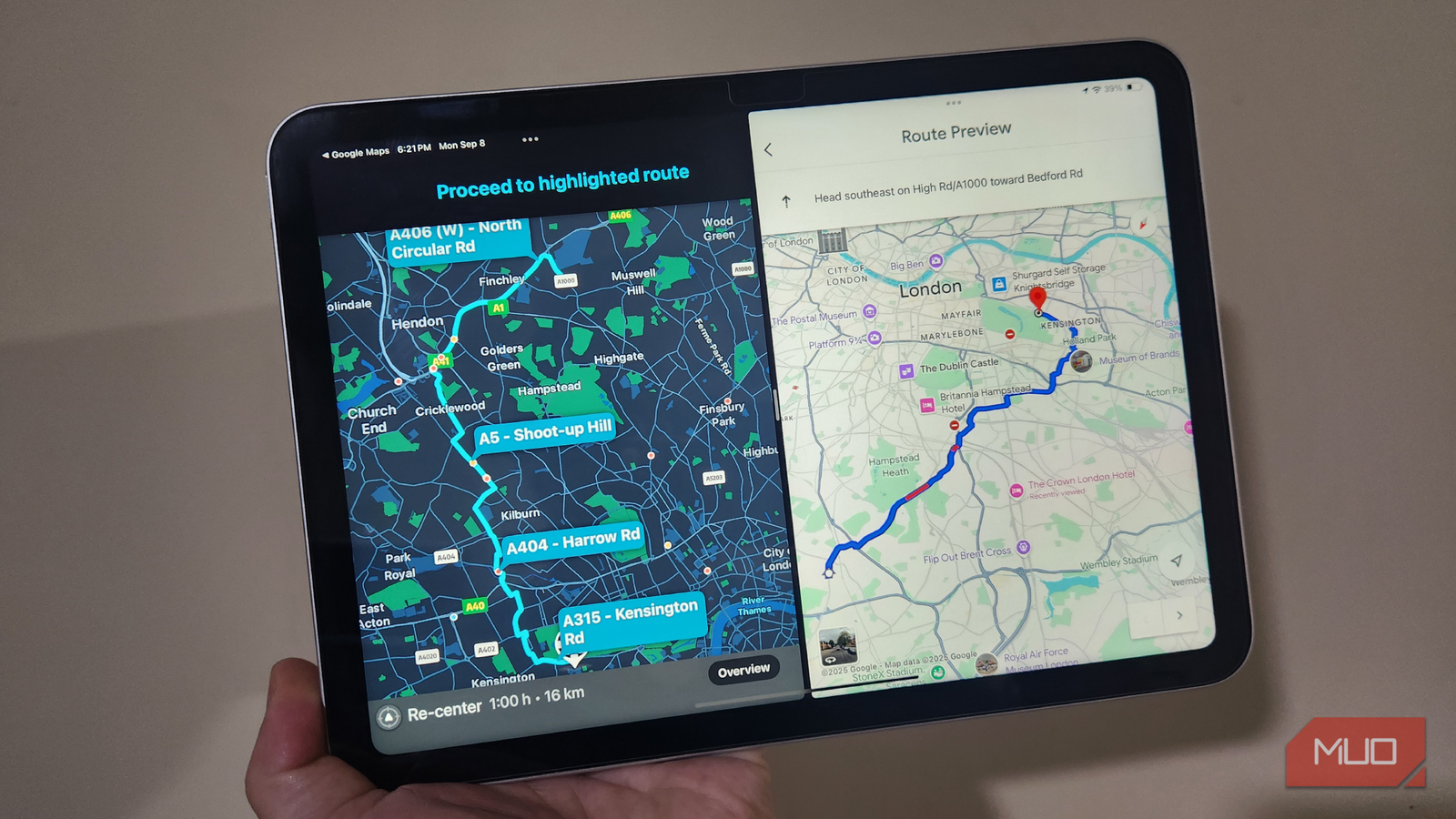
Listening to your favorite music or using Google Maps for navigation is something you’re likely to do often while traveling. However, streaming music or continuously using location services can quickly drain your battery. A simple yet effective way to avoid this is to download your music and maps for offline use before you embark on your journey.
Music apps like Spotify and YouTube Music allow you to download playlists, albums, or specific songs directly to your device. Similarly, you can use Google Maps to download offline maps of the areas you’re traveling to.


Additionally, be sure to download any important files, such as travel itineraries, PDFs, or documents you may need during your trip. By saving them to your phone in advance, you can easily access them through the file manager app.
6
Disable “Hey Google” Detection
While the “Hey Google” feature is a convenient way to interact with your Android device hands-free, it can also be a hidden battery drain. Since your phone’s microphone is always listening for the “Hey Google” command, this constant activity consumes power, even when your phone is idle.
Hence, it’s best to disable this feature by heading to Settings > Google Assistant > Hey Google & Voice Match and turn off the Hey Google toggle.


7
Disable Always On Display
The Always On Display (AOD) feature is quite useful, allowing you to quickly check the time, notifications, or other essential information without unlocking your phone. However, the downside is that it keeps the screen active at all times, draining the battery.
On Samsung Galaxy phones, you can disable the Always On Display feature by heading to Settings > Lock Screen and AOD. For devices running stock Android, go to Settings > Display > Lock Screen > Always Show Time and Info and toggle the option off.


8
Turn Off Location Services for Less Useful Apps
Keeping location services enabled is essential while traveling for tasks like navigation, checking the weather, or using other location-based services. However, you don’t need to keep location services active for all apps, as it can increase battery usage unnecessarily.
For instance, you can keep location services enabled for navigation apps like Google Maps but disable it for social media apps, games, or other apps that don’t rely on real-time location tracking. To do this, go to Settings > Location > App permissions. From there, go through each app and disable location access for unnecessary ones.
9
Avoid Exposure to Extreme Temperatures
Finally, it’s important to be mindful of how extreme temperatures can affect your phone’s battery performance. Both very hot and very cold conditions can cause your Android device’s battery to degrade and drain faster than usual.
To protect your phone while traveling, avoid leaving it in extreme temperatures. Instead, keep it in a cool, shaded area and store it in a pocket or bag when not in use.
Your Android phone can be an excellent travel companion, but its battery life may be a limiting factor. So, be sure to use these tips on your next adventure to keep your phone powered up for all the important moments.