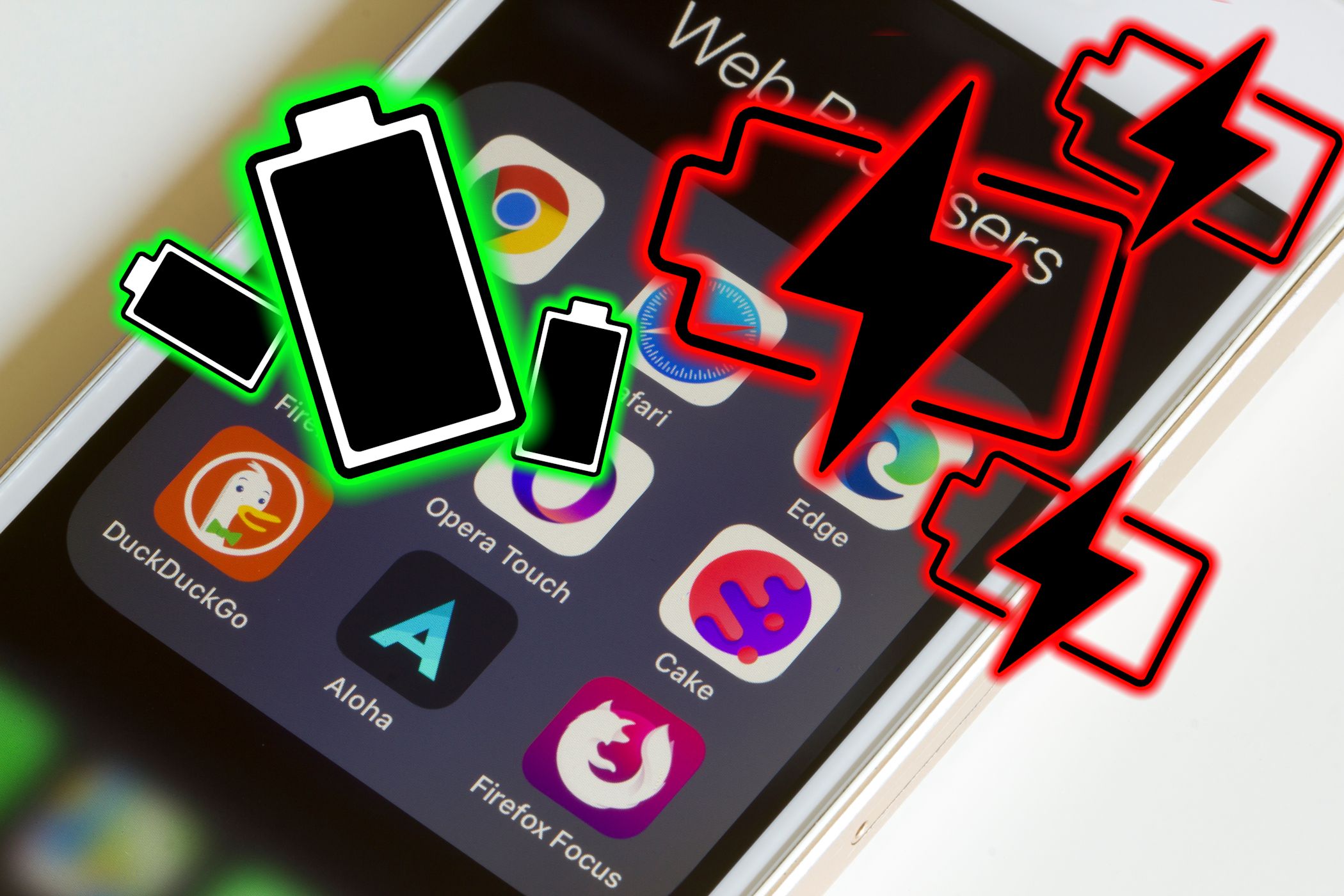
Tired of seeing your computer battery draining faster when you browse the web? You need a browser with a power-saving mode—and these are the best options.
1
Google Chrome
Chrome’s battery-saving feature turns on automatically when you only have 20% charge remaining. It’s also possible to switch it on each time your device isn’t connected to a charger.
The feature preserves battery life by stopping background elements that might drain your juice. For example, you won’t have a smooth scrolling experience after enabling it.
- Go to the three-dot icon and select More > More tools > Performance.
- Scroll down to Power and toggle Energy saver on.
- Choose whether you want to enable the feature while your computer is unplugged or just when you reach 20% battery.
2
Arc
Besides Arc being a productivity miracle, it can also help you preserve your computer’s battery life. Arc uses the same power-saving features as Chrome.

- Type arc://settings in your URL bar and hit the Enter key.
- Go to Performance > Power and toggle the feature on.
Now, choose your energy-saving preferences.
3
Microsoft Edge
Microsoft Edge has a handy efficiency mode designed to stop sapping your computer’s battery. You can choose between Balanced savings and Maximum savings. Both of these make it an excellent browser for saving power.
- Balanced savings preserves your battery when your computer is unplugged in a way that doesn’t impact your browser’s performance too much. However, Edge becomes more aggressive with its power-saving once your battery hits 20%.
- Maximum savings uses the same settings as if your device’s battery reached 20%. You won’t be able to use Edge to its complete capabilities, but you should still be able to at least perform basic functions.

To switch on Microsoft Edge’s power-saving modes:
- Go to Settings and search for Efficiency.
- Toggle Efficiency mode on.
- Choose between Balanced savings and Maximum savings.
- Tweak the other settings if you feel like doing so is necessary.
It’s also possible to turn on efficiency mode when your computer is charging but to be honest; I don’t see the point in doing so.
4
Opera
Opera claims its energy-saving mode can help your battery last up to 50% longer. You can choose whether you want the mode to automatically turn on when your computer is unplugged or under other circumstances that make sense.
Open Opera’s Settings and search for battery to find these features. Choose your preferences, and you’ll be good to go.

Besides its battery-saving features, Opera is ideal for privacy, with an integrated VPN, ad-blocking, and more. You can also try Opera’s mindfulness-focused Air browser, designed to help you focus and relax while browsing.
Saving battery while browsing is a great way to perform any research projects and get all the information you need for your next shop or whatever else you need. Though you can adjust many other settings, using purpose-built power-saving modes is an ideal starting point.