Key Takeaways
- Using low-quality charging accessories can often cause ghost touch issues on Android phones, so it’s best to use your phone manufacturer’s official charging adapter and cable.
- Avoid using inferior screen protectors and clean your phone’s screen regularly to prevent ghost touches caused by dirt or grime.
- If the ghost touch issue is due to a buggy Android build or malfunctioning app, installing pending updates or factory resetting your phone can help.
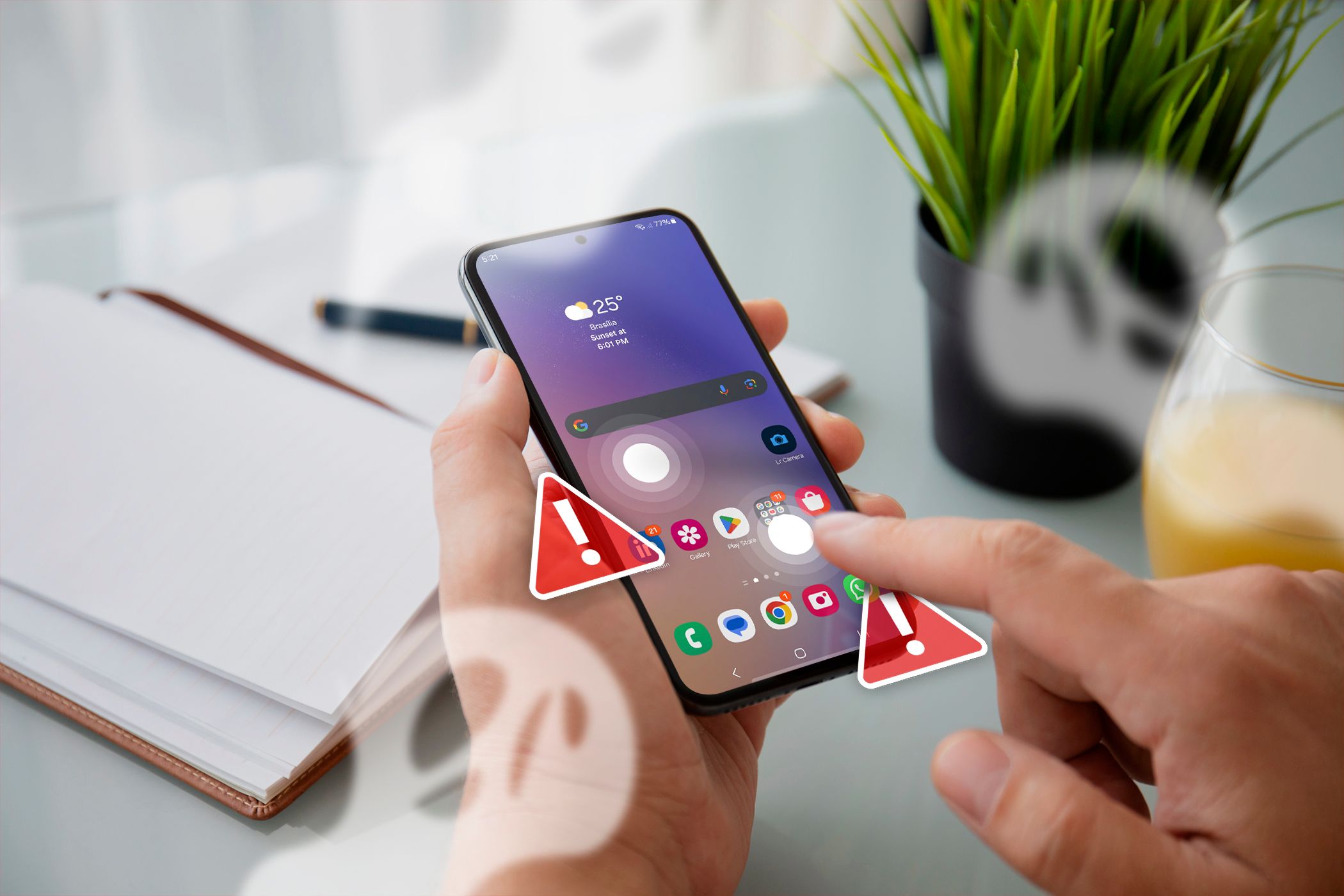
Is your Android phone acting on its own accord—opening apps randomly, typing gibberish, or making phantom calls? You might be experiencing the frustrating issue of ghost touch.
Ghost touch happens when your phone screen reacts to unintended inputs or presses you didn’t make or when certain parts of the screen become unresponsive to your touch. Since there’s no single definitive cause or solution for ghost touch, you will need to use a trial-and-error approach by attempting each of the troubleshooting steps below.
1. Replace Your Phone’s Charger
Surprisingly, ghost touch issues often arise when phones are plugged in. This is especially likely if you use a low-quality charger or cable. Using subpar charging accessories can interfere with the screen digitizer—the layer responsible for reading touch signals—leading to erratic touch behavior.
To check if the problem is caused by your charger, use a different charger and cable combination and see if that helps. If your charger or cable is the problem, we recommend replacing it with an official one from your phone manufacturer.
2. Clean Your Phone’s Touchscreen

Your phone’s touchscreen needs direct contact from your fingers to function properly. When foreign particles like dirt or dust accumulate on the screen, they can interfere with its performance and cause ghost touches. To prevent this, clean your touchscreen regularly to remove any dirt and grime.
To clean the screen, power off your phone and gently wipe your screen using a soft and slightly damp cloth. Then, wipe it clean with a dry cloth.
It’s important to note that ghost touch issues can also occur if your phone’s display is cracked. If that’s the case, refer to our guide on handling a cracked phone screen.
3. Replace Your Screen Protector

Screen protectors are great for protecting your phone from cracks and scratches, but they can also cause issues. For instance, dust, moisture, or air bubbles between the screen protector and your phone’s screen can cause ghost touch problems.
Such issues can also arise if the screen protector is of poor quality. Inferior materials used in a screen protector can affect the touch sensitivity of the display, potentially leading to problems like ghost touches.
Try removing your screen protector to see if that resolves the issue. If it does, clean your screen thoroughly and then apply a higher-quality screen protector. Ensure that you’ve installed it correctly to avoid similar problems in the future.
4. Ensure Your Phone Isn’t Overheating
An overheating phone can cause the screen to misbehave and register touches without your input. To prevent this, you should avoid using your phone for extended periods, especially in extreme heat or direct sunlight.
Excessive heat can cause electromagnetic interference, disrupting your device’s performance and potentially triggering ghost touch and other issues.
5. Keep Your Device Up to Date
Ghost touch is rarely caused by software glitches, but an outdated Android build or bugs can sometimes lead to abnormal behavior that mimics ghost touch problems. To address this, make sure your device is up-to-date, as updates often include bug fixes that can resolve such issues.
The exact steps for checking software updates may vary depending on the manufacturer, Android version, and the device’s user interface.
To update your Android phone, follow these steps:
- Open your phone’s Settings app.
- Tap Software update > Download and install.
- Wait for your phone to check for pending updates and install them.
If the above steps aren’t accurate for your device, refer to our guide on installing Android updates for various models.
6. Factory Reset Your Phone
Performing a factory reset is an effective way to address various issues with your Android phone, including ghost touch problems. However, remember to back up your data before proceeding, as a factory reset will erase all the information on your device.
Before resetting your device, try restarting first. Restarting can often resolve software issues and is a less drastic measure compared to resetting and starting from scratch.
To factory reset your Android phone, follow these steps:
- Open the Settings app and head to General management > Reset.
- Choose the Factory data reset option.
- Hit the Reset button, enter your device passcode, and follow the on-screen prompts to finish the process.
If you can’t perform the above steps due to ghost touch problems, try factory resetting your Android device using recovery mode or Find My Device.
7. Take Your Device to a Service Center
If you’ve tried all the troubleshooting steps and still can’t resolve the ghost touch issue, it might be time to consider replacing the screen. The problem could be due to screen deterioration, water damage, or a faulty component. In such cases, it’s best to take your device to a service center for repairs.
If your phone is still under warranty, your phone’s manufacturer may offer to replace it with a new one or choose to repair the screen instead to try to fix the issue. In any case, make sure you take the necessary steps to secure your Android phone before sending it for repair.
Depending on your situation, fixing ghost touch issues may be as quick as replacing the screen protector or as demanding as resetting the device or taking it to a service center for repair. In any case, one of the above tips should fix the underlying issue and make your phone function normally.