Key Takeaways
- Beyond 2FA, Microsoft Authenticator can also manage, generate, and autofill passwords across devices for a seamless experience.
- You can easily import passwords from other browsers and third-party password managers and sync from and to your desktop using the Microsoft Autofill extension.
- Dedicated password managers offer advanced features and a full suite of password management capabilities, which the Authenticator lacks.
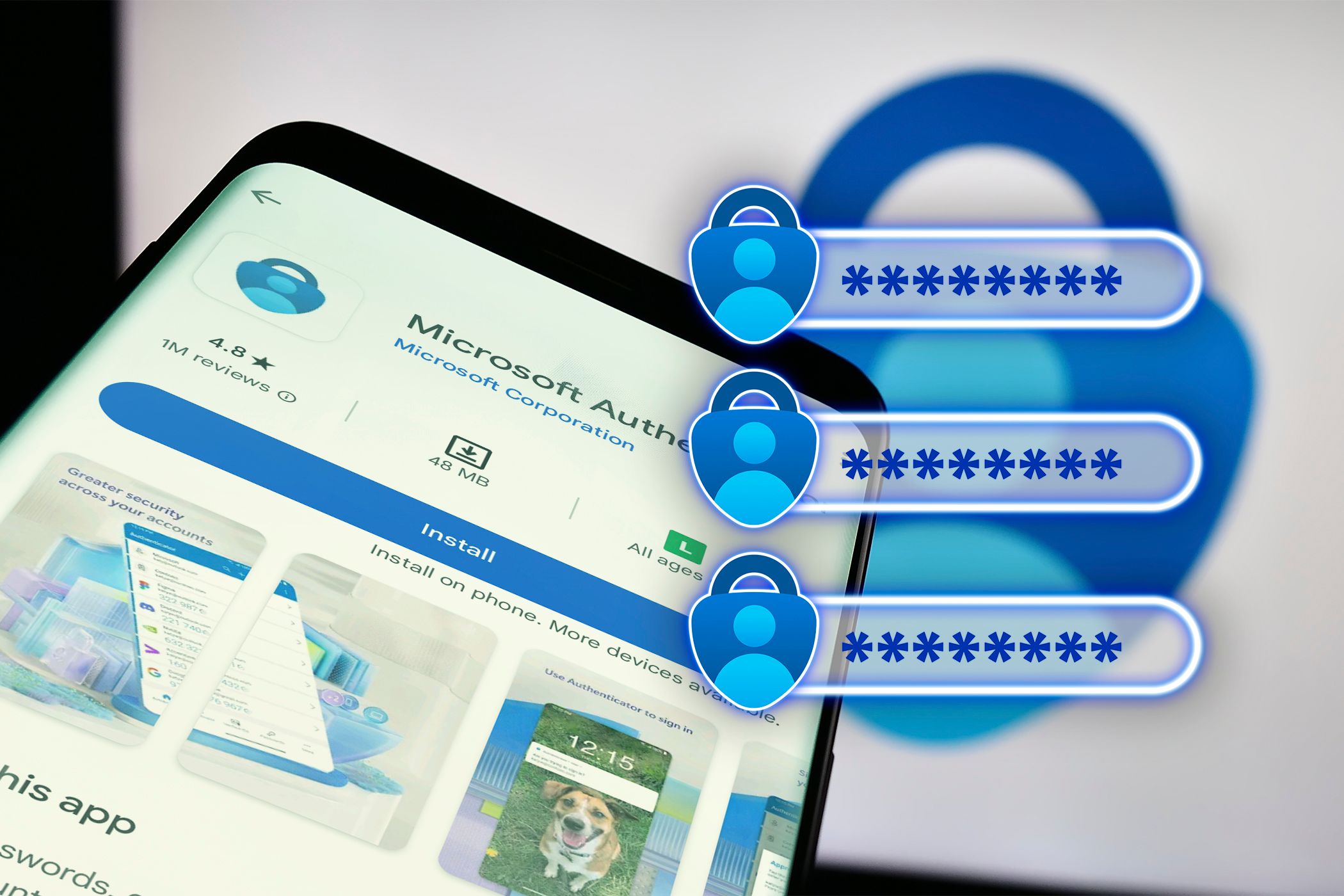
Microsoft Authenticator is an excellent two-factor authentication app. But did you know you can also use it as a password manager? Let’s explore how you can use this popular two-factor authenticator to keep your password secure on all your devices.
How to Install and Configure Microsoft Authenticator
If you don’t have it already, you can install Microsoft Authenticator from the Google Play Store or the App Store on your iPhone and iPad. Once installed, launch the app and follow the on-screen instructions to allow notifications.
Microsoft Authenticator requires a Microsoft account to work. If you have one, tap Sign-in with Microsoft account, then log in with your details. If not, you can create a new account within the app.
As you sign in, tap Allow autofill to set Authenticator as the default autofill service (allowing it to automatically populate known username and password fields). Tap OK to confirm the action. Review the summary and tap Done. If not, tap Skip, and you can do it later.
By default, App Lock is enabled for Microsoft Authenticator. This way, you’ll have to unlock the app each time to approve an authentication or view passwords. Also, you can’t use the password management features without enabling App Lock first. But if you must disable it, here’s how to do it.
- On Android, tap the three-dots menu> Settings > Turn off App Lock.
- On iOS, tap the three horizontal bars in the left pane and choose Settings. Under Security, tap App Lock to turn it off.
How to Import Passwords Into Microsoft Authenticator
Next up, you need to import your passwords into Microsoft Authenticator, be that from a browser or another password manager.
Import Passwords From Your Browsers
- In Microsoft Authenticator, open the Password tab. It will prompt you to import passwords from Google Chrome and other apps. Tap Try now. In the Let’s import your password screen, tap Import from Google Chrome. You can also import from other browsers as long as the browser can export the passwords in a .csv file—all major browsers support this feature.
- So, open the Chrome app, tap the three-dots menu in the top-right corner, and select Settings. Then go to Google Password Manager > Settings (gear icon), and tap Export password. Tap Export once more to confirm. Authenticate the process by unlocking your device. Enter a name for the .csv file and tap SAVE. On iOS, tap the three-dot icon at the bottom, select Passwords, and then choose Export Passwords.
- With the CSV file saved, switch to the Authenticator app and tap Select CSV from Google Chrome. Select the newly saved Google Password.csv file and authenticate using your fingerprint, PIN, or face. If Authenticator can’t import all the passwords, you can add the remaining passwords manually.
Tap Done to finish.
Import Password From Password Managers
You can also import passwords from dedicated password managers like Bitwarden, LastPass, Dashlane, etc. These are the instructions on how to import a password from Bitwarden to Microsoft Authenticator (as that’s what I have to hand), but it’s a similar process for most password managers.
- Open the Bitwarden app and sign in using your master password. Then, go to Settings > Vault > Export vault. Tap the File format (.json) field and choose .csv. Then, enter your password and tap Export vault. Tap Export vault again to confirm the action. Leave the name as default, select the save location, and tap Save.
- Now, switch to the Microsoft Authenticator app. Tap the three-dots menu in the top-right corner and choose Settings. Scroll down and tap Import Passwords. Next, tap Import from password managers.
- On the next screen, choose your password manager. Then, tap Select CSV file, choose the Bitwarden vault export file, and verify your identity. Again, if the import is partially successful, you can manually add the missing ones.
If you don’t use a mobile app for your password manager, export the .csv file using a web browser, save it on your phone, and then import it to the Authenticator app. Here is a list of password managers supported by the Authenticator app:
- 1Password
- Dashlane
- NordPass
- Bitwarden
- LastPass
- Firefox
- RoboForm
- Custom CSV
Manually Add a Password
Of course, you can also manually add a new password. On the Password tab, tap the big + icon in the bottom right corner and choose Add password. Enter the full URL (for example, https://makeuseof.com), followed by the username and password. Tap the check mark (✓) icon in the top-bottom corner to save the password.
Generate a Password
What’s a password manager without a password generator? Microsoft Authenticator gets one, too. To generate a new password, tap the + icon in the password tab, then tap Generate password.
By default, it generates a 15-character password with letters, numbers, and special characters. You can customize it to tweak the password complexity to meet your requirements. Once the password is ready, tap Copy password to use it on a new app. Additionally, tap the little Save (folder) icon to create a new account with the generated password.
Another handy feature of Authenticator is the password generator history. To access it, tap the + icon and choose Generator history. This will show all the passwords generated on the app in case you didn’t save or forgot them.
Configure the Autofill Service to Use Microsoft Authenticator
With autofill, Microsoft Authenticator can automatically fill in your credentials for the saved account. If you didn’t enable autofill during the initial setup, you can do so from Settings.
- Tap the three-dots menu in the top-right corner and choose Settings.
- Under Autofill settings, tap Set as autofillprovider.
- On the Autofill service screen, tap and select Authenticator, then tap OK to save the changes.
In some instances, you might need to enable Autofill on more apps and sites to allow autofill to work on some apps. So, tap Autofill on more apps and sites, and choose tap Turn on. In the Accessibility screen, tap Installed apps and choose Authenticator. Tap to toggle the switch and then select Allow. Check to see if the autofill service is working. If not, perform a quick restart, and it should start working.
Once configured, autofill works great with third-party apps offering to fill in the username and password for a saved account. It also works with your preferred browser on Android, including Chrome and Brave, except for Edge. Edge insists on using the integrated Microsoft Autofill service instead.
How to Use Microsoft Authenticator Autofill on Your Desktop
If you want to bring Microsoft Authenticator to your desktop, you’ll need to install the Microsoft Autofill browser extension. It’s available for Chromium-based browsers and extends Authenticator’s autofill and password management service.
To install the extension:
- Head to the Microsoft Autofill web store page and add the extension.
- Once installed, click the Autofill icon in the toolbar and choose Sign in with Microsoft to sign in.
Microsoft Autofill will sync your password from the Authenticator app. When you visit a website with a saved account, Autofill will automatically fill in your username and password and sign you in.
Furthermore, any accounts saved using Autofill will also be available on all your devices using Microsoft Authenticator. Though, you’ll need to manually sync using the Sync now button in the top-right corner of the extension.
For additional options, head to the Settings tab. Here, you can configure what information Microsoft Autofill can save and fill automatically, your preferred mode of identity verification, and whether identity verification is needed when auto-filling password and payment info.
Microsoft Authenticator Works, but Dedicated Password Managers Offer More
If you need a basic password manager with good security, Microsoft Authenticator is a solid password manager alternative. It’s also convenient, as it consolidates your two-factor authentication and password management tools in one app.
However, if you need more features like the ability to organize new and existing passwords in folders, cross-platform support, cross-device auto-sync, and other premium features, a dedicated password manager is still a better option. Ultimately, the best choice depends on your individual needs and preferences.