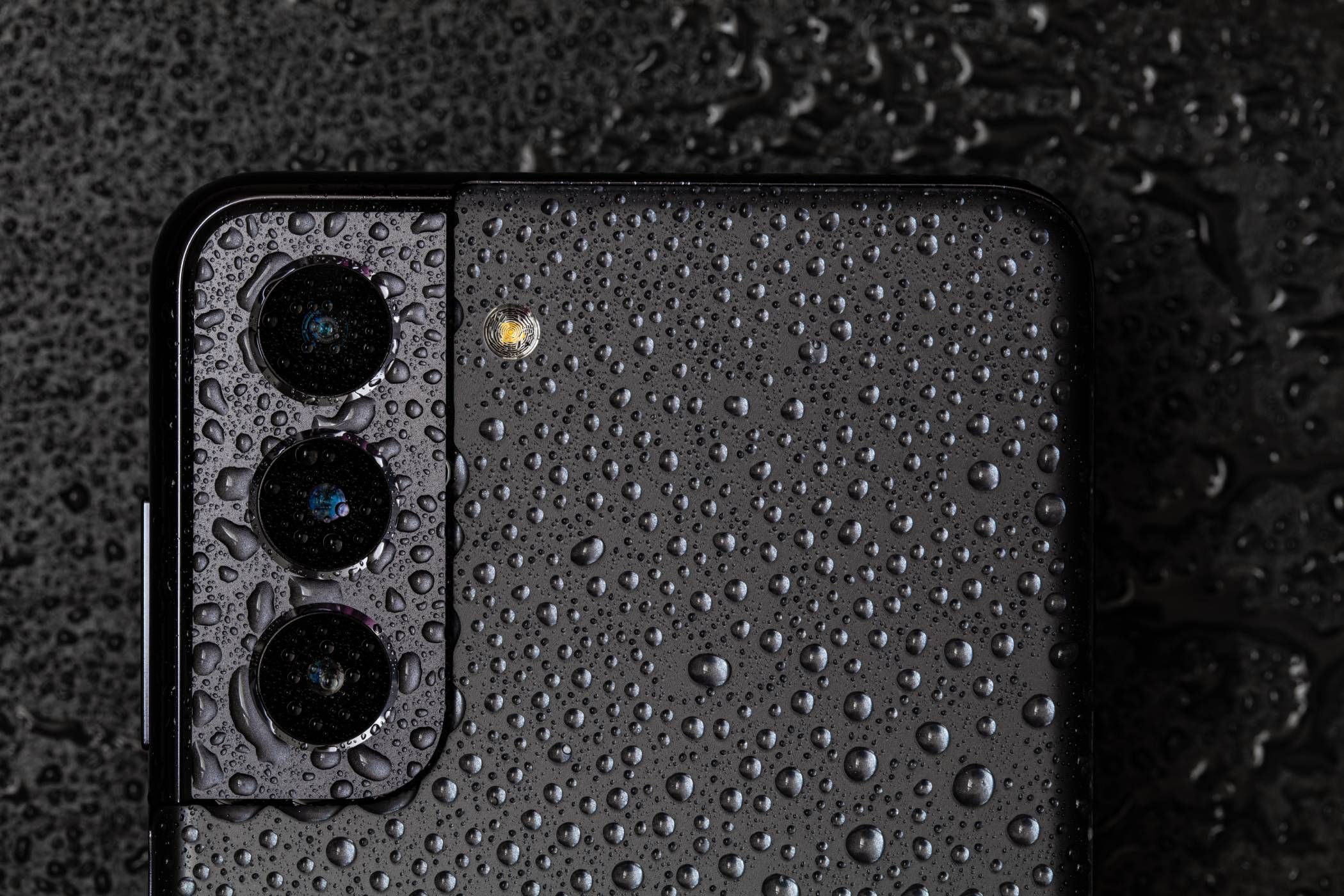
It can be really frustrating when you’re just trying to charge your Samsung phone and, out of nowhere, it gives you the dreaded “Moisture Detected” warning. Thankfully, there are ways to deal with it (and maybe even prevent it from happening again).
1
Disconnect Your Phone Charger and Dry the Charging Port
If you’re sure your phone has recently been somewhere near water, once you see the water drop icon, immediately disconnect your charger. It’s best not to try to charge your phone via cable with moisture in the charging port because that can complicate issues. You might be electrocuted or damage your device further.
If your phone is really low on juice, and you need it to stay on, you can use a wireless charger to charge it temporarily while you figure out how to get rid of the moisture from the charging port. After disconnecting your charger, power off your phone and clean your charging port with a dry cloth, tissue, cotton swab, or a moisture absorber like silica gel.
You can gently stroke the cotton swab inwards to absorb all the moisture in the charging port. Do not be harsh or push too deep, as this could damage the port. Also, do not shake your phone vigorously to remove the moisture, as this may damage your device further.
There is a popular myth that putting water-drenched devices in a bowl of rice absorbs moisture. That’s not correct; dipping your phone’s charging port in rice will cause more harm than good.
You can either cover the phone’s port with silica gel sachets or submerge it in rubbing alcohol instead. Better still, you can just wait for it to dry naturally with time, as some hours in a well-ventilated area should do the trick.
Once your port dries, plug in your charger, and you’ll find that the moisture warning has cleared.
2
Restart Your Phone With the Charger Plugged In
It can get more frustrating when you are so sure your phone hasn’t been anywhere near water—or so you think. Some moisture warnings can be triggered prematurely due to a bug or software malfunction.
If you’re sure that your charging port is dry, and you plug in your charger only to receive the “Moisture detected” message on your Samsung phone, consider force-restarting your device.
Typically, you can hard restart your phone by pressing the Power/Lock button for up to 30 seconds until the screen turns off and restarts. Keep the charger plugged in while you do this. A simple restart can clear temporary bugs and possible glitches triggering the moisture warning.
3
Disable Fast Charging
Some users report on Reddit that the moisture warnings first appear on Samsung phones while using fast charging. If this is an issue you’re seeing, you can disable fast charging to see if that helps.
To do this, go to your Samsung phone’s Settings menu, scroll down to Device Care, and tap Battery. Then, scroll down to tap Charging Settings and toggle off Fast Charging or Super Fast Charging.
4
Clear the USB Cache in Settings
If you still get the “Moisture detected” error message after your phone is dry, consider clearing the USB cache data in your phone’s settings. Over time, your USB cache can become corrupted or outdated, causing issues with USB connections and triggering the water drop icon.
To clear the USB cache on a Samsung Galaxy, go to Settings and scroll down to tap Apps. Tap the downward-facing arrow with three horizontal lines beside “Your apps,” select Show System Apps, and confirm with OK. Next, search for or scroll to USBSettings, and then tap Storage. From there, select Clear Cache at the bottom-right of the screen. After that, try charging your phone again.
5
Force Stop Android System
Another way to eliminate an unwarranted “Moisture detected” error message is to force-stop your Android system. To do this, head to your phone’s Settings menu and repeat the steps outlined above up to the point of Show System Apps. Next, search for or scroll down to Android System, then tap Force Stop in the bottom-right corner of the screen.
Force-stopping your Android system is a last-ditch effort option, and it is not entirely recommended. It could leave your device unstable as it will shut down all active processes on your Samsung device, including apps running in the background. This is why it’s best to restart after doing it.
Seeing Samsung’s moisture warning on your phone can be aggravating and nerve-wracking. It can also cause your phone to stop functioning correctly. However, you can fix this problem by cleaning and drying your charging port.
If you’re sure it’s a bug causing a false error, you can clear your USB cache and thoroughly reboot your phone to resolve the issue. If nothing works, installing the next software update your phone gets might fix it, or contact Samsung support for more help.