Key Takeaways
- Time-tracking apps can help you determine how long you spend on tasks and take breaks when needed.
- Apple Clock (or your device equivalent) is a good place to start, but some apps have extra features.
- Consider using software like Toggl or Clockify if you need to track billable hours, and Notion or Brite for all-in-one app use.
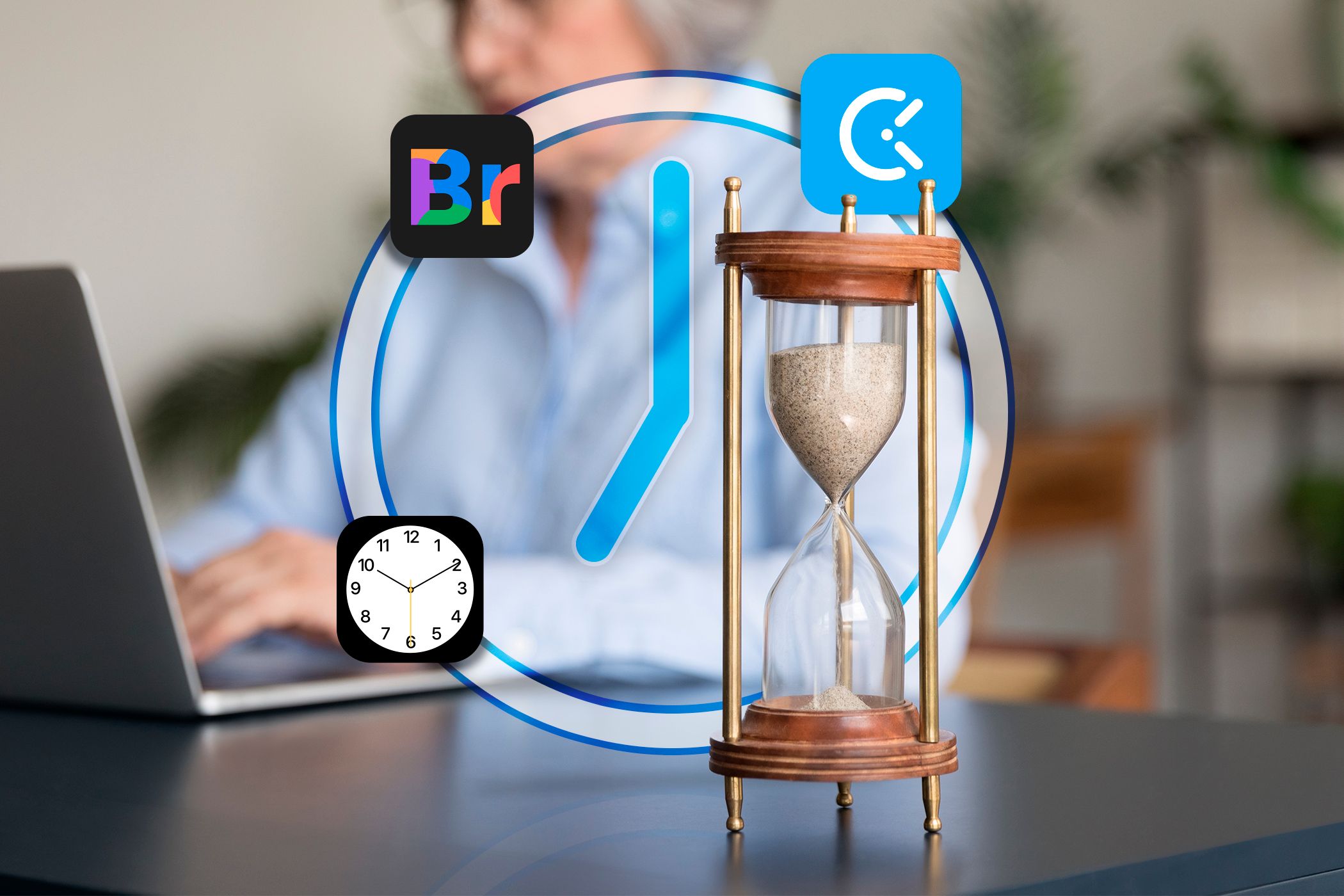
Tracking your time at work can be essential for determining how long you should allocate for each task. It’s also good for knowing when you should step away from the screen. Today, I’ll show you my top picks for time-tracking at work.
1. Apple Clock
By far the easiest way to track your time at work is via your smartphone, laptop, or tablet’s native clock app. Since I use a MacBook and an iPad, I use Apple Clock. The app helps me set tighter timescales when I need to get something done, and I receive a notification when time is up. I’ll also use Apple Clock’s timer if I wish to take timed breaks.
If you want to see how long you spend on a task, you can use the Stopwatch feature. The app is flexible, free, easy to use, and doesn’t require a download. As far as I’m concerned, it’s logical to start here.
Don’t worry if you don’t have an Apple computer; the Windows 11 Clock app has some great productivity features too. You can also use the Apple Clock’s timers on an iPhone or iPad to help track work time.
2. Brite
Brite is another productivity app I’ve used extensively, and I have written in the past about why you should organize your day with the Brite app. One of its most underrated features is its Pomodoro timer. Despite its name, you can use it as a general timer to break down your working windows each day—not just for the Pomodoro Technique.

Brite’s timer lets you choose periods ranging from five minutes up to one hour. Simply press the Play button and it’ll then start running down. If you want to keep your timer within the same app that you break down your other tasks, Brite is an excellent option. Even without subscribing to the premium version, you’ll have access to it. You’ll also see how long is left on your timer in the browser tab heading.
If you want to subscribe to Brite Premium, it costs $3.29/mo (annual) and $4.50 (monthly). You can also go one step further than just planning your day and plan your entire week in the Brite app.
Download: Brite for iOS | macOS | Android (Free, in-app purchases available)
3. The Notion Pomodoro Timer

Notion doesn’t have a built-in timer, but you can download a template. I have personally found that the Minimal Pomodoro Tracker is the most effective. This timer lets you split your work into 25-minute bursts, and after each session, you can rest and recuperate before going again. You can choose whether you want a short break (five minutes) or a long break (15 minutes).
When using this template, you’ll also find a simple task tracker. Here, you can determine how much time you’ll need for each project. Moreover, you can adjust the priority level and set clear instructions to ensure that you complete whatever is needed.
When you’re working and the timer is in action, you can also listen to lo-fi music within the template. So, if you’re prone to app-switching, you might find that this is a worthy alternative. You might want to consider using various other Notion templates for your productive routines to make your work or study day even more effective.
Download: Notion for iOS | Android | macOS & Windows (Free, in-app purchases available)
4. Clockify
Clockify is another great app for tracking your time at work, especially if you get paid by the hour. You can set up a timer to track your overall time and determine how much of this is billable, while adding the amount that you should get paid. You can use project names and descriptions so that you don’t lose track of what you’ve been working on.

Using Clockify, you can also access reports that show you how many billable hours you’ve worked within different periods. This information is visible in pie and bar charts. Another handy feature is the built-in calendar that you can use to add dates to tasks. Thanks to tags, you can also differentiate each task however you feel is necessary.
Clockify also lets you add your hours worked, etc. manually—just switch from Timer to Manual and select the + icon. More advanced features, such as time off and task rates, are available with a paid plan, but you don’t really need these if you’re only tracking your time.

Download: Clockify for iOS | Android | macOS | Windows | Linux (Free, in-app purchases available)
5. Toggl
Toggl is a user-friendly time-tracking app, that lets you comprehensively outline what you’re working on. You can mention which project you want to tag via the Add project option and use tags to organize your time more effectively. One of the nicest things about Toggl is that you can start and stop tracking whenever you need to take a break. The app also integrates well with Apple Calendar.

When you’ve completed a timer session, you’ll see it listed with the total amount of time you spent on your project. The Pomodoro timer, meanwhile, will give you a default 25 minutes to work before you take a break. You can, however, customize your focus and rest times to better fit your schedule and needs.
Toggl has statistics that show you total billable hours and expected earnings. If you’ve got old time tracks from elsewhere, you can add these in the app manually. Like Clockify, Toggl has paid subscriptions available, but the free plan is more than enough unless you’re working as part of a big agency.
Download: Toggl Track for Windows | macOS | iOS | Android (Free, in-app purchases available)
Does It Matter Which Time-Tracking App You Use?
If you’re only interested in tracking your time to see how long you’ve worked on a task or for scheduling breaks, you should pick whichever is the easiest for you. For me, Apple Clock is more than fine in this respect. However, if you need additional features—such as task breakdowns—you should use something with those features (i.e. Toggl or Clockify).
You should also think about any productivity apps you use, and whether you want to keep everything in one place. Personally, I think this is a good idea because it can dramatically reduce app switching. In those instances, either look for a productivity app with a timer or integrate a template if possible.